How to transfer PSP games to your mobile device
First, make sure you have your games as ISO (or CSO or CHD) files. See How to get games and How to dump games.
The following instructions apply identically for PPSSPP and PPSSPP Gold.
Universal method (requires Wi-Fi)
This requires that your iOS or Android device, and the device where the games are, are connected to the same Wi-Fi network. Additionally, this only works from PPSSPP 1.20 and upwards.
On the Games tab, make sure you are in the folder where you want to put games.
Click the Upload icon (it has a folder with an up arrow on it).
Follow the on-screen instructions. You will be asked to go to a specific URL on the device that you want to copy files from. You will get a simple web interface where you can upload ISO files.
Use the web interface to upload your ISO files. Done!
Android

This guide requires a PC.
Connect your Android device (phone, tablet, etc) to your PC using a USB cable. Likely, the one you charge the device with will work just fine.
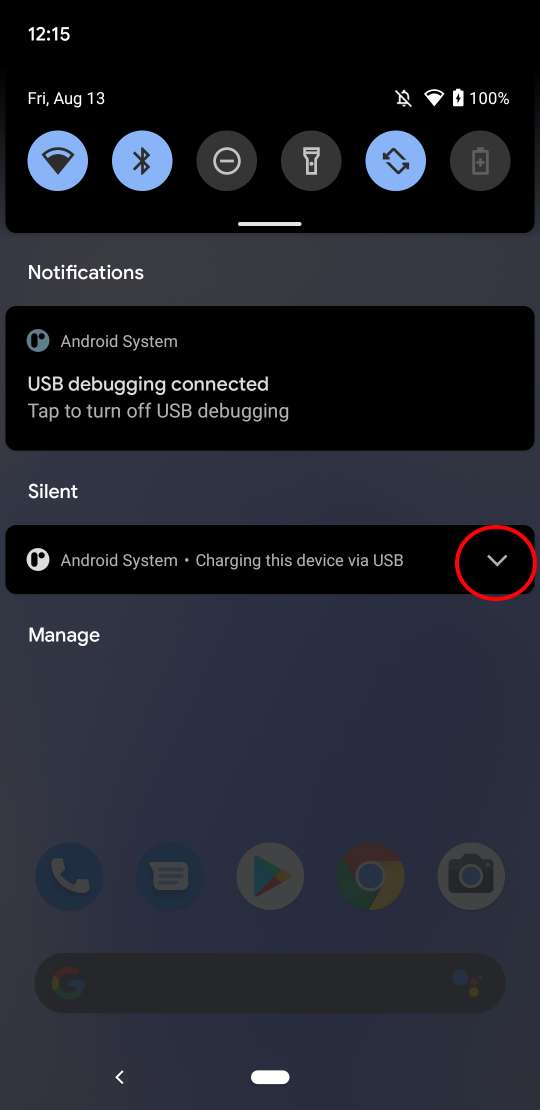
On your device, pull down the menu and click the circled arrow:
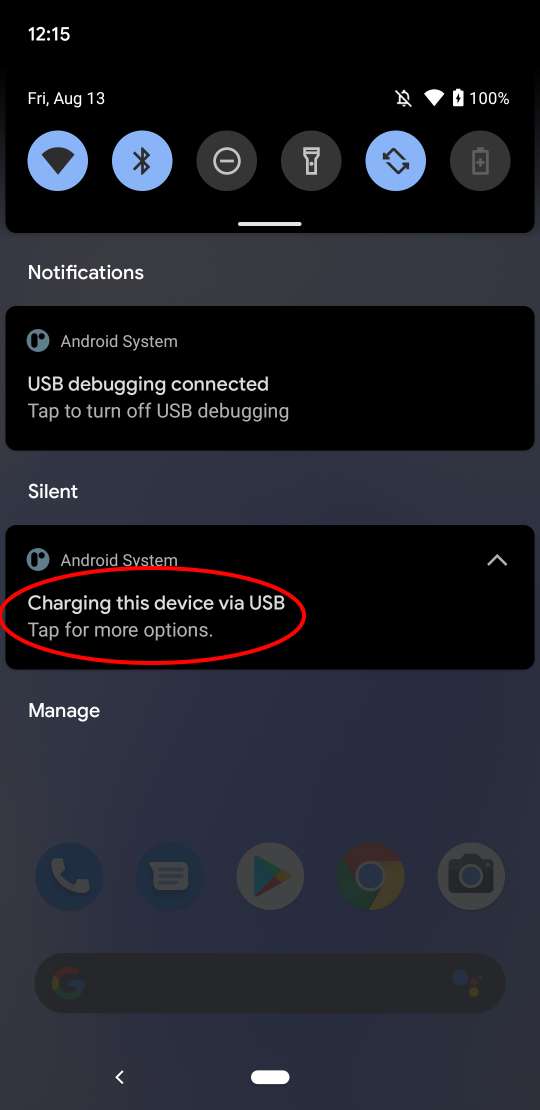
Then click the circled item, "Tap for more options".
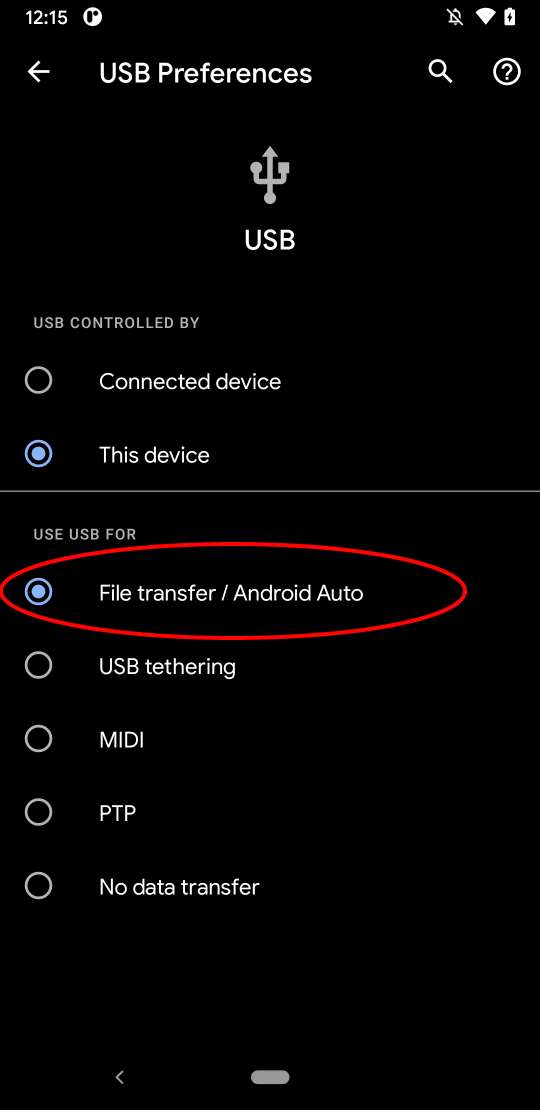
Next, you'll be at this screen, where you can now enable USB file sharing:
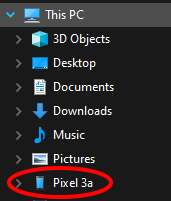
On your PC, you'll now be able to see the device's storage in Explorer:
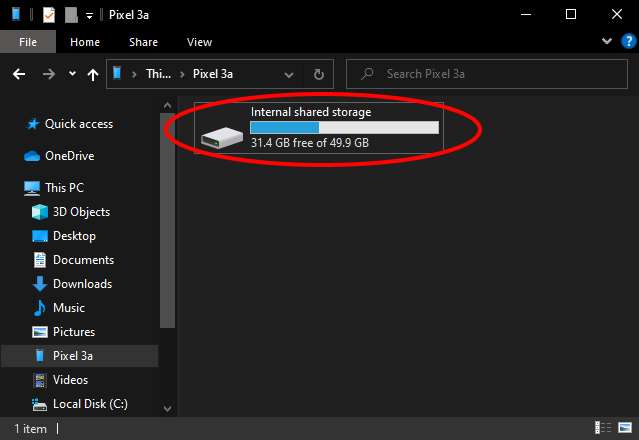
You can now create a new folder to store your ISOs in, if you haven't already. A quick way is by pressing
Ctrl+Shift+Nand typing the name of your new folder. (It's recommended that it's separate from thePSPfolder where system files and save games go, but it does work to use the same folder.)Now simply copy the games over inside your new target folder.
Finally, after starting PPSSPP on your device, you'll be able to either directly browse to it (Android 10 or older, or old installs), or you'll be able to tap Browse... and select it.
iOS

The below instructions require a Mac.
Install PPSSPP on your iOS device (iPhone or iPad).
Connect your iOS device via USB to your Mac.
Open the device in Finder. Click the
Filestab, then you should see PPSSPP listed.Drag your ISO files directly into the app.
After this, the ISO files will be located on the virtual Memory Stick. Simply browse them from the Games tab. (Click the Home icon if you can't find the files.)
If you don't have a Mac, use a Windows device and install Apple Devices app.